
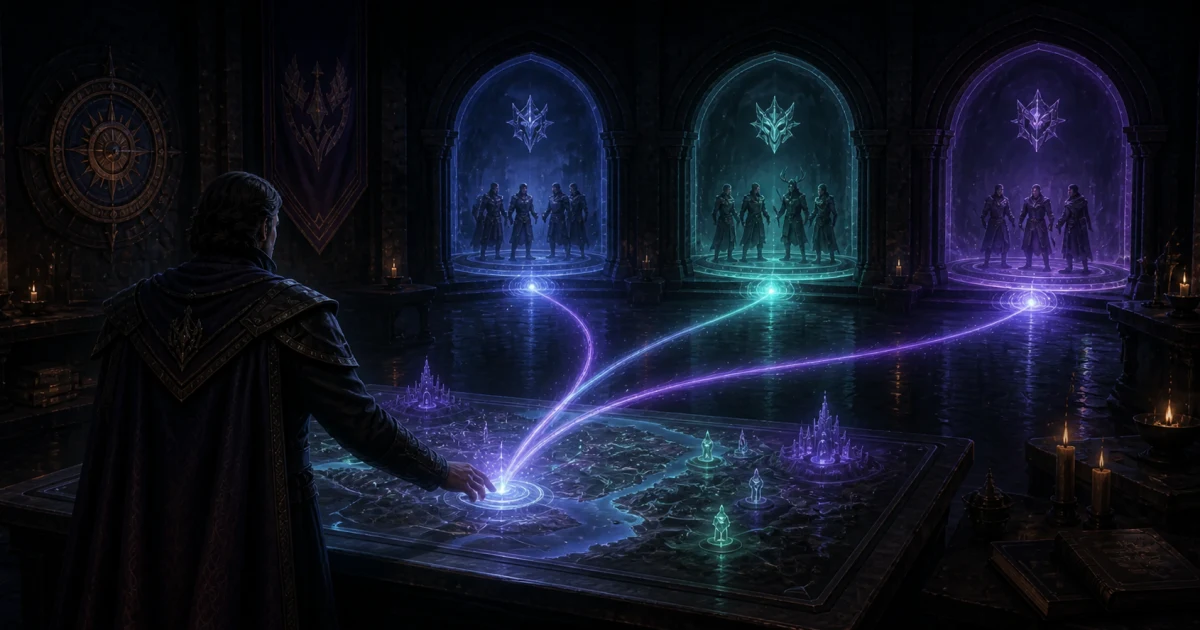
Discord voice attendance across multiple channels
Take one attendance snapshot across selected voice channels, a category, or channel names sharing a prefix. Run it manually or schedule it, with Shotcaller optional.
Count every squad in one snapshot
Your parties can stay in separate voice channels while you take attendance once. Guild Manager can include selected channels, the voice channels in a Discord category, or channels whose names start with the same text. Shotcaller is optional.
Every check records who is in voice at that moment. You can run it manually or schedule one snapshot for the activity. Neither option continuously monitors attendance or measures minutes spent in voice.
Turn on voice attendance first
Open the activity's Attendance settings and turn on Voice attendance. This allows both manual and scheduled snapshots. If it is off, /track-activity will explain where to enable it instead of starting a check.
Voice attendance uses the activity's signup and attendance rules. Those rules decide whether members without an RSVP can be counted and whether absent signups should be marked as no-shows. Use an account with permission to manage the activity. Run saved-channel and Shotcaller snapshots in the Discord server connected to the guild.
Choose which rooms count
In the activity's Attendance settings, use Voice attendance channels to choose the rooms that count. Keep the activity's main voice channel if everyone meets in one room, or choose a wider selection for a split raid.
| Selection | Example | What to check |
|---|---|---|
| Selected channels | Command, Party 1, and Party 2 | Add any new party channels to the selection. Renaming a selected channel does not remove it. |
| Discord category | All voice rooms under Aion Raid | Keep social and AFK rooms outside the category. New voice rooms in the category are included. |
| Channel name prefix | Names starting with siege- | Use the same prefix for every participating room. You can also limit matches to a category. |
A prefix is the beginning of the channel's name, not a regular expression. Matching ignores letter case. For example, siege- matches siege-alpha and siege-bravo. Renaming a channel or moving it between categories can change which rooms match the next snapshot.
Check Currently matching voice channels before saving. The saved selection can be used for scheduled attendance and for manual snapshots. Guild defaults and activity templates let you reuse the setup for future activities.
Take a manual snapshot with /track-activity
Use a manual snapshot when an officer should choose the exact moment. To use the activity's saved attendance channels:
/track-activity activity:[select] use-configured-channels:true
You can also choose rooms for just this run. To include the voice channels in a category:
/track-activity activity:[select] category:[select category]
To include channels whose names start with siege-:
/track-activity activity:[select] channel-prefix:siege-
Add category:[select category] to the prefix command to restrict it to that category. The bracketed text in these examples means choose an item in Discord's selector.
Add preview:true to check the matching channels and voice members before recording attendance. A preview does not check anyone in or award rewards. It shows the current selection; a later attendance run takes a fresh snapshot.
Without a channel-selection option, /track-activity activity:[select] still uses the officer's current voice channel. The existing channel option chooses a single voice or stage channel without needing to join it. Use one selection method per run, with category and prefix as the one combination supported.
Other useful options include:
mark-no-shows:truemarks members who signed up but are not in the snapshot.include-deafened:falseleaves deafened members out of the result.include-non-rsvp:trueincludes eligible members who did not sign up.finalize-attendance:trueperforms the final check for members who attended earlier but left before the end.
For a multi-room event, include all participating channels before marking no-shows or finalizing attendance. Guild Manager combines the rooms into one result, excludes bots, and counts each person once. Being in voice still does not override the activity's eligibility rules.
Guild Manager confirms the capture, then processes attendance and rewards. Quick runs replace the command reply with the result. If processing takes longer, the reply keeps the workflow ID visible and Guild Manager sends the final summary to the officer by direct message. When the activity has an attendance results channel, Guild Manager posts a copy there too.
Schedule one snapshot
Use a scheduled snapshot when attendance should always be recorded at the same point in an activity.
In the activity's Attendance settings:
- Turn on Voice attendance.
- Choose the attendance channels for this activity.
- Turn on Schedule one voice snapshot.
- Choose how many minutes before or after the activity starts it should run.
- Optionally choose a text channel for the attendance summary.
Guild Manager takes one snapshot across the configured attendance channels at that time. An officer does not need to run the command or be in voice. Shotcaller is not required.
You can still run /track-activity manually before or after the scheduled snapshot. Existing check-ins are kept, so a later run can add newly present members or perform a final attendance check.
Keep using Shotcaller
If your guild uses Shotcaller for voice relay, you can keep using its synced channel assignments for manual attendance:
/track-activity activity:[select] shotcaller-mode:true
Connect the guild's Discord server, configure Shotcaller, enable the integration in Guild Manager, and sync the active speaker bots and their assigned channels. Guild Manager combines the members from those active, synced channels into one attendance result. See the Shotcaller setup guide for the full walkthrough.
Shotcaller supplies the channel assignments. You do not need the integration for attendance taken through your own channel selection, category, or name prefix. Enabling the integration does not start attendance or continuous monitoring.
Check coverage before counting absences
Use a preview before the event and check the reported channel coverage when you take attendance. If a selected channel was deleted, the bot cannot access it, or a rule matches no channels, fix the selection or bot permissions before retrying. Manual /track-activity checks skip inaccessible rooms and members whose Discord lookup fails, then record the members they can confirm. The result shows skipped counts and reasons, with channel details attached. No-show marking and early-leaver penalties are disabled for that run when coverage is incomplete. Preview is off by default; add preview:true to inspect coverage without recording attendance. Invalid selections, including deleted explicitly selected channels, still need to be corrected. Scheduled captures continue to stop on incomplete coverage. Automatic no-show processing waits for a completed scheduled capture. If it is still pending after the retry window, an officer needs to review attendance. If a scheduled capture fails, automatic no-show deductions stay blocked for that activity, even after a retry succeeds. Review attendance and explicitly mark no-shows once you have confirmed the full headcount.
Each snapshot reads channels in the server where you run the command. Saved activity selections and Shotcaller mode require the guild's connected server. A direct channel, category, or prefix selection can be used in another server with your guild character and the required activity permissions. Voice relay to an allied server does not automatically include that server's members.
If your raid needs a headcount at the start and another at the end, take two snapshots. Each run records that moment. It does not tell you how long someone stayed between checks.
Written by
Guild Manager Team
We build Guild Manager's roster, event, and Discord tools. For questions or corrections, contact the Guild Manager team.
Keep reading
View all
TL Guild Manager (TLGM) is now GuildManager
GuildManager is the next version of TL Guild Manager, built by the same team. New guilds start here, and TLGM guilds can move their members, DKP, and history across.
What your guild can do in Discord
The Guild Manager command guide: officer loot auctions, voice attendance, rewards, gear OCR, and the setup that belongs in the dashboard.
Meet the new Guild Manager experience
Guild Manager has a fresh new look, simpler navigation, and clearer everyday workflows for members and leaders.