
Let your members join through a Discord event
Set up a signup channel, let newcomers add their characters in Discord, and understand what carries over to your guild roster and Discord roles.
Your members already use Discord to say they're coming to raid. Their first signup can also add them to your Guild Manager guild, with their character details attached. They don't have to fill out an application first if you allow their Discord role to join through activities.
This guide uses WoW Forever as the example. Other games use their own character questions. When a required question needs more than Discord can collect, the signup continues in Guild Manager instead.
The screenshots show a test guild. Your guild name, eligible Discord roles and character names will differ.
1. Connect your guild to Discord
Open your guild in Guild Manager and go to Settings → Discord. Connect the correct server, invite the Guild Manager bot if needed, and use Verify Connection to check access.
The bot needs access to the channel where you want to post signups. If a channel is missing from the picker later, check its Discord permissions and refresh the channel list.
2. Choose who can join through an event
On that same settings page, find Member joining from Discord events.
- Turn on Allow joining through activities.
- Under Who can join, choose an existing Discord role held by the people you want to admit. For example, select your guild's Member role.
- Save the change.
You need Guild Manager's Manage Members permission to change this setting.
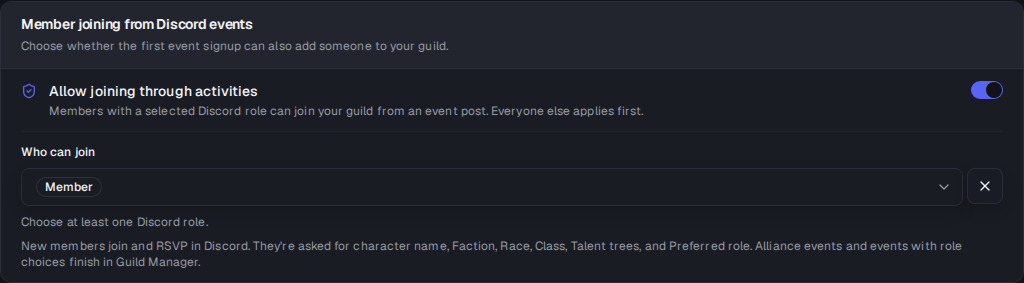
These are eligibility roles. Selecting Member here means someone who already has Member in Discord may join through an event. It does not create that role, assign it to everyone who signs up, or connect a healer selection to a Healer role.
People without a selected role still apply first. Leaving this setting off also keeps the application-first path.
The explanation below the picker tells you which character questions newcomers will see. You don't need a separate game-setup screen to enable the default questions for WoW Forever.
3. Post an activity to your signup channel
Go to Activities and create the raid or other event as usual. Set its name, time and signup rules, then expand Discord & reminders.
- Enable Send signup messages to Discord.
- Enable Post to Discord when created if you want the post sent as soon as you create the activity.
- Choose your signup channel under Announcement Channel.
- Review any mentions and reminders, then create the activity.
The announcement channel is where members see the signup post. The activity voice channel is a separate choice for where people should meet.
4. What a newcomer sees
An eligible newcomer starts from a signup button on the activity post. Guild Manager guides them through creating a character, or lets them choose one they already own.
For a new WoW Forever character, they enter a character name and choose:
- Faction
- Race
- Class
- Talent trees, optionally
- Preferred role, optionally
The choices depend on one another. Picking a faction changes the available races, and picking a race changes the available classes. Talent trees and preferred roles follow the selected class.

This panel is private to the person signing up. They can edit the name, change their details, or cancel before joining.
Next comes a review. They check the details and confirm that they want to join the guild and sign up. The character, membership and RSVP are saved when they choose Join and sign up, or Join as tentative for a tentative response. Reaching the review screen alone does not put them on the signup list.

A successful signup gives them a confirmation and an Open in Guild Manager link. If a basic profile was created through Discord, they can later sign in to Guild Manager with that same Discord account to claim and manage it.
5. Which details stay connected?
The character and RSVP belong to Guild Manager. This isn't a separate signup list that an officer has to copy over from Discord.
Members can change their activity response through the event's supported response buttons. Editing a character's class or build is a separate action from changing that RSVP. Signing in with the same Discord account lets the member manage their character in Guild Manager.
Discord server roles have their own configuration. Treat these as three different things:
| Choice | What it controls |
|---|---|
| The existing Discord roles selected under Who can join | Who may join your guild through an activity |
| Character class, talent trees and preferred role | The character details saved in Guild Manager |
| Class Sync mappings | Which Discord server roles correspond to character classes |
6. Set up class roles separately
If you want Priest characters to have a Priest Discord role, open Settings → Class Sync. This page needs a Core plan or higher and Manage Roles in Guild Manager.
Map each class to the Discord role you want it to use. The bot must have Discord permission to manage roles, and its own role must sit above the roles it assigns. The page also offers a quick setup for creating class roles.
Use Preview sync all, check the proposed changes, and confirm to bring existing members' class roles into line with your mappings.
Changing a character's class in Guild Manager or with Discord's /character command also updates class roles. Old managed class roles can be removed and new mapped ones added. This considers all of a member's active guild characters, so someone with a Priest alt can keep the Priest role after changing another character.
The first native event signup does not itself trigger Class Sync. Use Preview sync all again to give new signups their class roles. WoW talent trees and Preferred Role also do not have equivalent Discord-role mappings here. Selecting Healer does not automatically grant a Healer server role.
7. Choose how the signup list looks
To change the list, go to Activities → Settings in your guild, open Discord and find Signup post design → Signup list. This settings page needs a Core plan or higher. The available presentations include Counts, Names by response and Party roles.
Party roles shows role columns with class groups. For damage dealers, it can also show melee and ranged totals when their talent tree has a known range. If no one has class or role details yet, the list shows names by response instead.
Those totals aren't separate melee and ranged signup columns. WoW Forever uses tank, healer and DPS roles. Faction is stored on the character, but the Discord signup list does not offer a Horde/Alliance grouping switch.
When signup opens Guild Manager instead
Some activities still need the web form:
- Alliance activities.
- Activities using a role or build preset. This is separate from the character's Preferred Role question.
- Games whose required character fields cannot fit the supported Discord form.
- Games where Discord character signup has been explicitly turned off.
Opening that link is not a completed RSVP. The member needs to finish the web flow before they count as signed up.
Guild eligibility, capacity and the activity's signup rules still apply. Allowing joining through activities does not bypass those rules.
Check your setup with one member
Before sending everyone to the new channel, have one person with an eligible Discord role try a normal guild activity. Check that they can finish their character details, review them, join, and appear on the activity in Guild Manager.
If they land on an application, check Who can join and their current Discord roles. If they land on the web form, check the fallback cases above. Discord & reminders also tells you when newcomers from a post will finish in Guild Manager. If their class role is missing afterward, check Class Sync separately rather than changing the joining roles; that feature needs Core or higher.
Ready to retire the guild spreadsheet?
Create your guild with Discord. Start planning events, tracking attendance, and managing loot in one place.
Create GuildFree: unlimited members · No credit card
Written by
Guild Manager Team
We build Guild Manager's roster, event, and Discord tools. For questions or corrections, contact the Guild Manager team.
Keep reading
View all
TL Guild Manager (TLGM) is now GuildManager
GuildManager is the next version of TL Guild Manager, built by the same team. New guilds start here, and TLGM guilds can move their members, DKP, and history across.
What your guild can do in Discord
The Guild Manager command guide: officer loot auctions, voice attendance, rewards, gear OCR, and the setup that belongs in the dashboard.
Discord voice attendance across multiple channels
Take one attendance snapshot across selected voice channels, a category, or channel names sharing a prefix. Run it manually or schedule it, with Shotcaller optional.