

How to set up soft reserves in WoW Forever with GuildManager
Set up soft reserves on a WoW Forever activity, help raiders save their picks, and take the locked list into the GuildManager addon or Gargul.
A soft reserve gives you priority to roll for an item if it drops. If several raiders reserve the same item, they roll against each other under the rules your group agreed to. A hard reserve sets an item aside in advance. Tell the raid what to do with unreserved drops and ties before anyone makes a pick.
You can collect soft reserves alongside signups in a WoW Forever guild on GuildManager's Free plan. For a practice run, this guide uses The Deadmines. Before opening reserves for your own activity, check that its loot table contains the items your group intends to reserve. If your guild has the module turned off, a guild leader can enable Raid reservations in Settings → Modules.
Officers: create the activity and open reserves
- Open your guild on the web and go to Activities → Create activity.
- Choose Raids or Dungeons, then the specific Activity Type. Expand Soft reserves and turn on Let members soft reserve loot. If the panel says No loot table yet, you can still create the activity and take signups. Publish a loot rule separately for that run.
- Set Reserves per member, who can see the picks, and whether someone can spend more than one reserve on the same item. Review the bottom of the form before choosing Create activity. The summary tells you whether the form will open reserves and post to Discord.
If you already made the activity, open Loot & reservations and look for Enable soft reserves. You can set hard reserves and exclude items from the activity's Loot & reservations → Open menu → Raid rules → Edit rules.
Raiders: sign up and save your picks
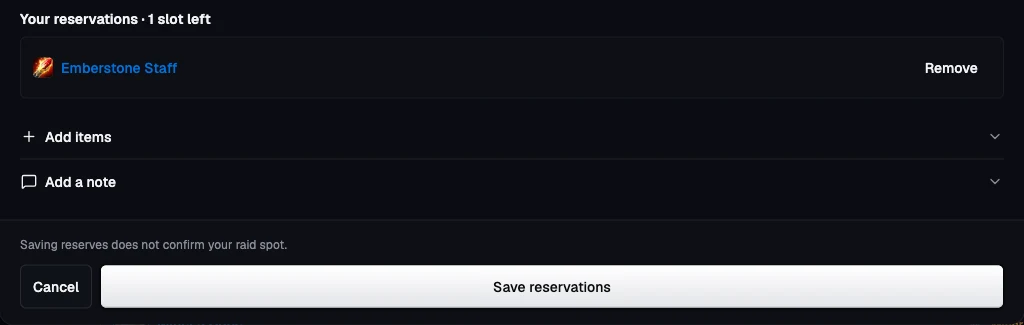
Open the activity from your guild or its Discord post. Sign up with the character you will bring. Open Reserve loot near your response or go to Loot & reservations. The loot table lets you search by item or boss and pick from the drops listed for that activity. Choose Save reservations, then check that your item appears in My reserves. For a later edit, return before the lock deadline.
If the reserve form asks you to complete your character, add the requested profile fields and return to the activity. Ask an organizer for help with guest admission or changing a pick after lock.
Officers: lock and bring the list into WoW
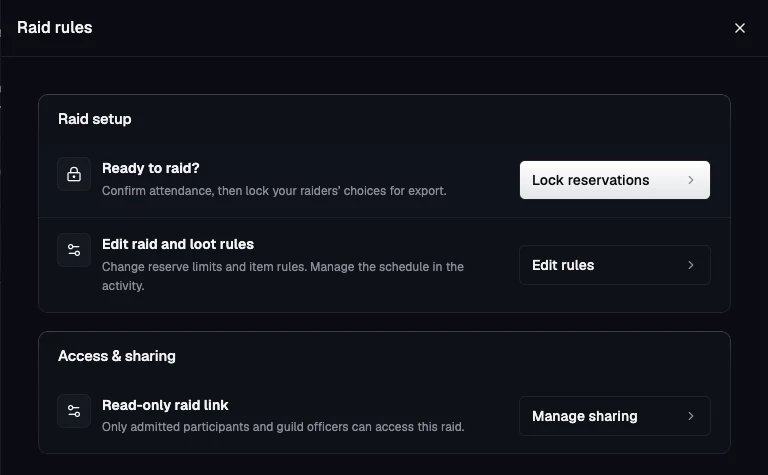
In Loot & reservations, open the menu next to Loot priority, choose Raid rules, then choose Lock reservations. Check your roster first. The locked list uses confirmed and present participants. Ask raiders to check that their picks survived the lock before you start distributing loot. Choose Load in WoW on the locked list to see which revision to load and generate either addon export.
Use the GuildManager addon
- Install GuildManager Companion, sign in with the same account, and select the WoW Forever character for this guild. In Settings → WoW Forever addon, choose Install addon. If the game isn't found, choose the WoW Forever game folder.
- Keep Companion open. In Settings → WoW Forever addon → Soft reserves, look for the activity name and revision. Unconfirmed in WoW means Companion wrote the file and WoW still needs to read it. Run
/reload, then open/gm raidand check that the raid and revision match. - Hover a reserved item to see its reserve lines. In a raid group, the addon can name the reservers in your loot chat when a reserved item drops. Use your usual in-game rolls or loot addon to decide the recipient and handle the handover in WoW.

If you need to load the list without reloading, open Load in WoW and choose Copy code on the GuildManager row. Run /gm import in WoW and paste the whole GMSR1: string. Choose Import locally, or Import and share as raid leader or assistant for a shareable list. Each receiving player needs the addon. Personal organizer-only imports stay local. Re-export after an amendment and check which revision players applied.
Keep Gargul for distribution
In Load in WoW, choose Copy code on the Gargul row. In WoW, run /gl sr to open Gargul's SoftRes window and import the string. Review the names and the import warnings before loot drops. In-game rules that the format cannot carry, such as exclusions or class/spec restrictions, still need an officer to enforce them. If you amend the locked list, repeat the export and import. See the Gargul and SoftRes handoff and Gargul's import instructions.
After the run
Keep Companion open during a real raid. When the game saves its addon data, Companion can upload the raid log for officers with attendance-recording access. In Companion, go to Settings → WoW Forever addon → Raid reports and open the report. Review the observed attendance and drops before recording the report. Verify delivery in game before marking an item delivered.
For your first rehearsal, have one raider reserve an item, lock the list, and ask your loot officer to find that same character and item in the tool they will use on raid night. If the revision or item is missing, stop and recheck the catalog, the character, and the last import or reload.
Ready to retire the guild spreadsheet?
Connect Discord to start scheduling raids, tracking attendance, and awarding loot.
Create guildFree for unlimited members · No credit card required
Written by
Guild Manager Team
We build Guild Manager's roster, event, and Discord tools. For questions or corrections, contact the Guild Manager team.
Keep reading
View allWoW Forever loot tools compared: Softres.it, Gargul and GuildManager
Compare WoW Forever soft-reserve sheets, in-game rolls and raid reports. Learn when to use Softres.it, keep Gargul or collect reserves alongside GuildManager signups.

WoW Forever Barrow Deeps raid prep guide
Set your 10-player roster, pick one rally point and decide how to distribute unfamiliar loot before Barrow Deeps opens on December 9.
WoW Forever Hyjal Summit raid prep guide
Build a 20-player lineup for Hyjal Summit, assign coverage across four parties and set the route, supply and loot rules before December 9.